

Here is how to change location on Chrome.
Changing your location in Chrome can be useful for several reasons. It allows you to gain more privacy, avoid various limitations, and expand your search results. It can also be useful for applications or services that are based on geolocation, and you want to change this information to access different content or services.
There are several ways to change your location in Chrome, and using the ZoogVPN extension is the easiest way for it.
The following guide will take you through the steps required to change your location in Chrome with the ZoogVPN extension.
Step 1 – Add the ZoogVPN extension to your Chrome browser
- follow the link, where you can find the ZoogVPN extension to Chrome browser: ZoogVPN – Free VPN for Chrome & Proxy;
- click on the ‘Add to Chrome’ button;
- click on the ‘Add extension’ button;
- in the upper right corner of the browser, click on ‘Extensions’ and select ZoogVPN – Free VPN for Chrome & Proxy from the list:

Step 2 (optional) – Login to your ZoogVPN account in the extension window or create a new one on our website
If you still don’t have a ZoogVPN account – you can create a new account, find available plans for a premium subscription, and make a purchase of the one that suits you best by the following link: ZoogVPN Checkout.
If you already have an active premium subscription, you can log into your account to use our VPN without any issues. To sign in, please complete these steps:
- In the upper left corner of the extension window, click on the three horizontal lines;
- Click on the ‘Sign in’ button;
- Sign in using credentials (login, password) from your ZoogVPN account:
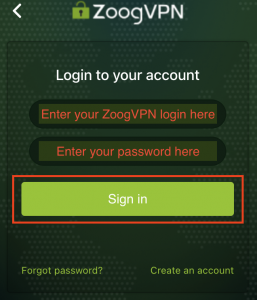
You’ve successfully logged in to your account and all servers are available for connection in the extension now.
Step 3 – Connect your browser to the VPN
To connect to the VPN, just click on the lock icon in the middle of the extension window. You can connect to an automatically chosen server or you can choose a server for connection from the list by yourself:
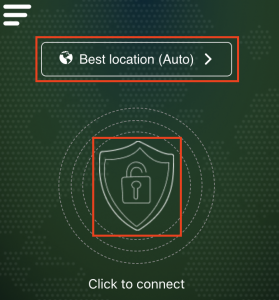
If the VPN connection is successful, the extension window should look like this:
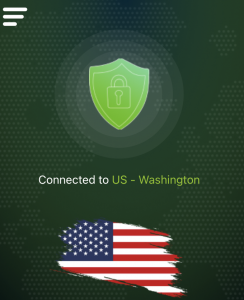
That’s it! You have successfully connected your browser to a VPN. Since Chrome assumes that you’re connecting from the VPN server’s location when using a VPN, this means that you’ve successfully changed your location in Chrome. So now you can enjoy more privacy and enhanced search results. If you want complete privacy, we recommend installing our apps on all your devices.
Once you have changed your location by connecting to a VPN, you can check it by typing something into the search bar. After that, you need to scroll down the page to see what location Chrome is using for you.
A more detailed guide on how to install the ZoogVPN extension for your Chrome browser can be found here.
Start using ZoogVPN today to ensure a safe internet experience.
Don’t forget to connect with us on Facebook and Twitter. We strongly encourage Free Plan users to show their support on social media. Thank you.


