

When installing ZoogVPN on your Mac via the DMG file, you need to grant specific permissions for it to function correctly. However, if you install ZoogVPN from the Mac App Store, no additional permissions are required. Follow the steps below based on your macOS version to allow the necessary system extensions.
macOS 12 and Earlier
- When prompted, click “Open Security Preferences.”
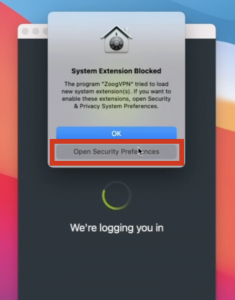
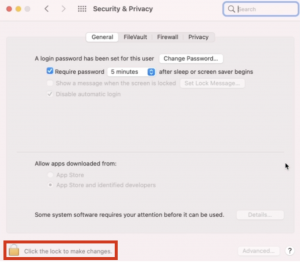
- You will be redirected to the Security & Privacy settings.
- Click the lock icon at the bottom left to enable changes.
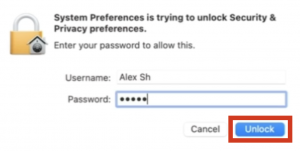
- Then enter your password.
- A message will appear:
- “Some system software requires your attention before it can be used.”
- Click “Details.”
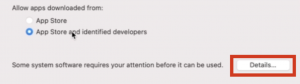
- You will see a list stating:
- “System software from the following developers was updated and the system needs to be restarted before it can be used.”
- Locate ZoogVPN and toggle it on.
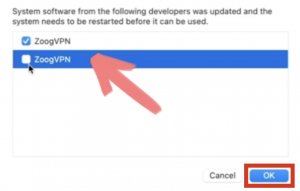
- Click “OK” and restart your Mac if prompted.
How to Grant Permissions for ZoogVPN on macOS 12 and Earlier: Video Guide
macOS 13 & 14
- Start by logging into the ZoogVPN app.
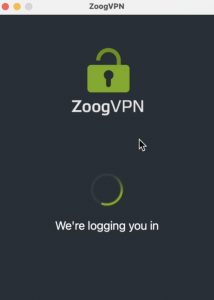
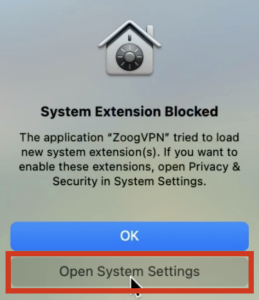
- Next, a message will appear:
- “System Extension Blocked: The application ‘ZoogVPN’ tried to load new system extension(s). If you want to enable these extensions, open Privacy & Security in System Settings.”
- Here, click “Open System Settings.”
- In the Privacy & Security window, find the section:
- “Some system software requires your attention before it can be used.”
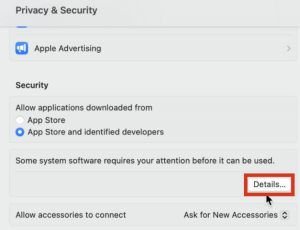
- “Some system software requires your attention before it can be used.”
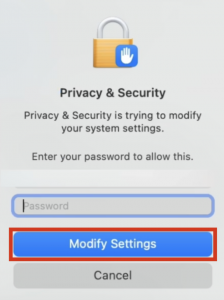
- Click “Details,” enter your password.
- Next, select “Modify Settings.”
- Locate ZoogVPN-on under system software and toggle it on.
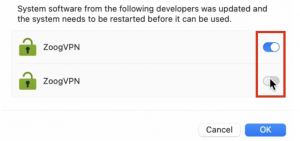
- Click “OK” and restart your Mac if required.
How to Grant Permissions for ZoogVPN on macOS 13 & 14: Video Guide
macOS 15 and Later
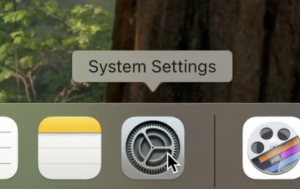
- Open System Settings.
- Navigate to:
- General → Login Items & Extensions.
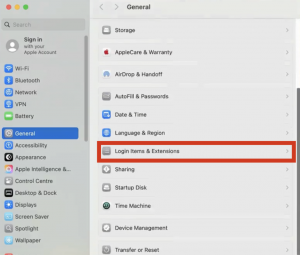
- General → Login Items & Extensions.
- Find the Extensions section and look for Network Extensions:
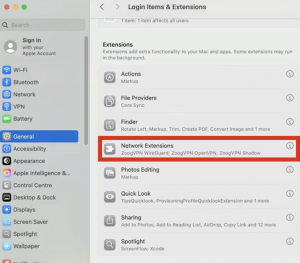
- Click the “i” (information) button next to this section.
- A window will appear with details about network extensions.
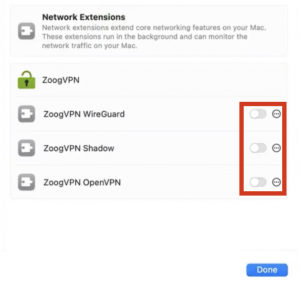
- Toggle the switch on for each ZoogVPN extension.
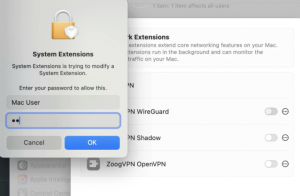
- Enter your password when prompted and click “Done.”
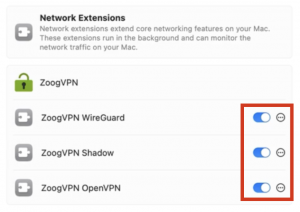
How to Grant Permissions for ZoogVPN on macOS 15 and Later: Video Guide
After completing these steps, ZoogVPN will be properly configured and ready to use. If you encounter any issues, restart your Mac and try again.
For further assistance, contact ZoogVPN Support at [email protected].


