

This guide explains how to set up SOCKS5 proxies on Windows using specific tools and applications, ensuring clarity and usability.
Before setting up a SOCKS5 proxy on Windows using ZoogVPN, you need:
- An active ZoogVPN subscription. The proxy server details are available only if you have an active subscription.
- An active internet connection. Your device needs to be connected to the internet to connect to ZoogVPN’s servers and establish the proxy setup.
Without these prerequisites, the SOCKS5 proxy configuration won’t function.
Important Note!
Windows’ built-in proxy settings primarily support HTTP/HTTPS proxies. SOCKS5 proxies cannot be directly configured at the system level. To use ZoogVPN’s SOCKS5 proxy, you’ll need to configure it within specific applications that support SOCKS5 or use a third-party app like Proxifier to enable system-wide SOCKS5 proxy support.
1. Proxy Configuration Using Third-Party Tools
For advanced SOCKS5 proxy configurations on Windows, third-party applications like Proxifier provide reliable solutions. Below are step-by-step instructions for each tool.
Using Proxifier
- Download and install Proxifier from its official website.
- Open Proxifier and go to Profile > Proxy Servers.
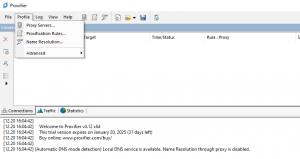
- Click Add and input the following details:
- Address: ZoogVPN’s SOCKS5 server (e.g., nl.free.zoogvpn.com)
- Port: 1080, 5060, or 41080
- Protocol: SOCKS Version 5
- Authentication: Enter your username and password, if required.
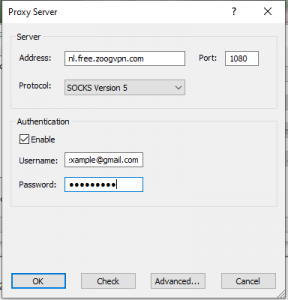
- Test the connection by selecting the proxy and clicking Check. Ensure the status is successful.
- Apply the settings to route your internet traffic through the proxy.
2. Application-Specific Proxy Configuration
Many applications on Windows allow direct proxy configuration. Let’s see an example for Telegram:
Telegram
- Open Telegram on your Windows computer.
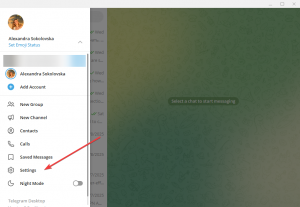
- Go to Settings > Advanced >Data and Storage > Proxy Settings.
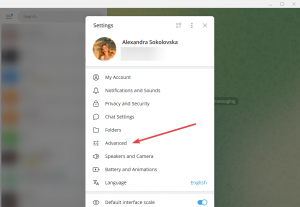
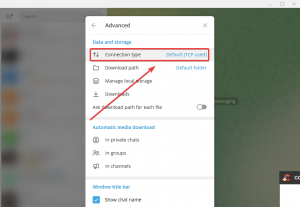
- Add a new proxy:
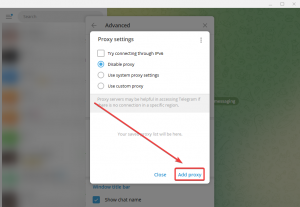
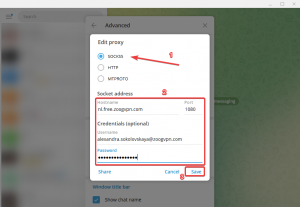
- Type: SOCKS5
- Server: ZoogVPN’s SOCKS5 server (e.g., nl.free.zoogvpn.com)
- Port: 1080, 5060, or 41080
- Authentication: Enter your username and password, if required.
- Toggle the proxy to “On” and verify connectivity by sending a message.
Troubleshooting Common Issues
- Connection fails – Double-check the IP, port, and authentication details.
- Tool not working – Ensure you are using an updated version of the application.
- Redundant configurations – Avoid multiple overlapping proxy setups across tools and applications.
Using any of these guides, you can efficiently configure and utilize SOCKS5 proxies for secure and private internet usage.


