

Let’s put an end to the outdated myth: “Macs don’t get viruses.” That may have held some truth in the past, but today, malware threats are platform-agnostic, and Macs are equally vulnerable. When installing a new app, browsing public Wi-Fi, or opening emails, your Mac can be exposed to modern malware like adware, spyware, ransomware, and phishing payloads.
These threats aren’t just minor, as malware can slow down your system, trigger crashes, flood your browser with pop-ups, hijack your files, or even steal sensitive data. The positive part is that you don’t need to be a tech expert to fix the issue. With the right tools and some careful steps, you can detect, remove, and secure your Mac all on your own. In this post, we’ll walk you through how to do exactly that. For both casual users or full-time creative professionals, securing your Mac doesn’t have to be complicated or expensive.
Signs Your Mac Might Be Infected
If your Mac is suddenly running hot, the fan is constantly on, or it’s slower than usual, it can be a warning sign. Other symptoms include pop-ups or unexpected redirects while browsing, a changed homepage, unfamiliar applications or files appearing on your system, or friends receiving spam from your accounts.
Even if you only notice one of these signs, it’s smart to run a malware scan as soon as possible. Mac malware infections tend to worsen over time.
How to Remove Malware From Your Mac
Begin by deleting suspicious applications manually. Drag any suspicious apps from the Applications folder to the Trash, then empty the Trash to complete the removal.
Review your browser extensions. In Safari, open Settings, then go to the Extensions tab and uninstall anything unfamiliar. In Chrome or Firefox, go to the Extensions or Add-ons section and remove any you didn’t intentionally install.
Boot into Safe Mode. For Apple Silicon Macs, shut down the computer, hold the power button until startup options appear, then press Shift and click “Continue in Safe Mode.” For Intel Macs, restart the computer and immediately press and hold the Shift key. Once in Safe Mode, repeat the removal steps above. Safe Mode limits background activity, making Mac malware easier to eliminate.
For stubborn threats, use macOS Recovery Mode. Please keep in mind that this step is recommended only for advanced users. Restart your Mac in Recovery Mode (Cmd + R on Intel or hold the Power button for Apple Silicon). From there, you can use Disk Utility to run First Aid or reinstall macOS without wiping your data.
If necessary, Terminal can be used for advanced command-line cleanup, but misuse may cause data loss or system damage. As a last resort, consider erasing the drive and performing a clean install of macOS, ideally after backing up all important files.
Use Antivirus Tools to Quarantine and Delete Threats
Once malware on Mac is detected, a reliable antivirus tool is the first line of defense. Antivirus software can quarantine malicious files, isolating them so they can’t continue harming your system. You’ll usually be able to review quarantined items before deleting them permanently, and many tools support automatic cleanup after a set period (for example, 30 or 60 days).
In addition to antivirus protection, Mac cleanup tools (cleaners) can be helpful for removing leftovers that malware often leaves behind. These tools are designed to identify:
- orphaned files and launch agents
- unwanted login items
- malicious or unnecessary browser extensions
- cache files and hidden system junk created by adware
While cleaners are not a replacement for antivirus software, they can significantly improve results by eliminating residual components that might otherwise cause reinfection or system slowdowns.
For best results, use antivirus software to detect and neutralize threats first, then run a trusted Mac cleaner to tidy up remaining traces and restore system performance.
How to Eliminate Malware on a Mac
Keep macOS and apps updated. Software updates often include critical security patches that fix known vulnerabilities. Enabling auto-updates is the easiest way to stay protected.
Only download apps from trusted sources. Stick to the Mac App Store or verified developer websites. Avoid downloading software from pop-ups, file-sharing platforms, or unknown links.
Don’t click on suspicious links or attachments. Phishing attacks are still one of the most common ways malware gets installed. Be skeptical of unexpected messages, especially those urging immediate action.
Use strong passwords and enable two-factor authentication. This implements advanced protection to sensitive accounts like your Apple ID, banking apps, and cloud storage.
Invest in a cybersecurity suite. Combining real-time antivirus with a VPN is one of the best ways to protect your system and your online privacy. A good security solution should also block ads, trackers, and prevent DNS leaks.
If you’re looking for a lightweight, all-in-one solution, consider trying your own tool or promoting a product like ZoogVPN bundled with antivirus features.
ZoogVPN for Your Mac Safety
Once your Mac is clean, keeping it that way is just as important, and ZoogVPN is an excellent tool to apply for this goal.
ZoogVPN is a robust privacy and security solution designed to secure your Mac from cyber threats before they even reach you. By encrypting your internet connection, ZoogVPN blocks malicious trackers, phishing domains, and intrusive ads, while also protecting you on public Wi-Fi, where Mac malware risks are especially high.
Looking for more than just encryption? ZoogVPN includes:
- Ad and tracker blocking to reduce exposure to malicious scripts
- DNS leak protection to ensure your real IP and DNS requests stay private
- Support for Shadow protocol – ideal for bypassing censorship in high-risk regions
- Strict no-logs policy backed by offshore jurisdiction
- Affordable plans with real-time support and easy setup on macOS
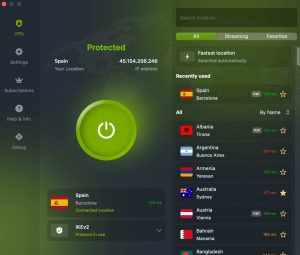
Stay secure while browsing, prevent data exposure, and avoid infected downloads with ZoogVPN – install today.
Frequently Asked Questions
How do I know if the malware is really gone?
If the strange behavior stops, antivirus scans return clean, and no new suspicious files appear, it’s likely the malware has been removed. Run another scan a few days later to confirm.
Does macOS include any built-in protection?
Yes. Tools like Gatekeeper, XProtect, and MRT provide baseline security. However, they aren’t enough to defend against newer or more sophisticated threats.
Can I trust free antivirus software?
Some free tools are reliable, but others may come with hidden risks like adware or weak detection engines. Always research a product before installing it.
How long does a full scan take?
It depends on your system. Most full scans take between 10 minutes and an hour, depending on your storage size and antivirus software.
What if malware keeps coming back?
Use Safe Mode and Recovery Mode to clean more thoroughly. Persistent infections may require a full macOS reinstall or help from a professional.
- Diana BestaievaContent Writer at ZoogVPN. Diana deeply explores the newest technologies and shares valuable insights engagingly and comprehensively. Keeping up with the tech news, she makes in-depth content, explaining complex concepts with ease.


