

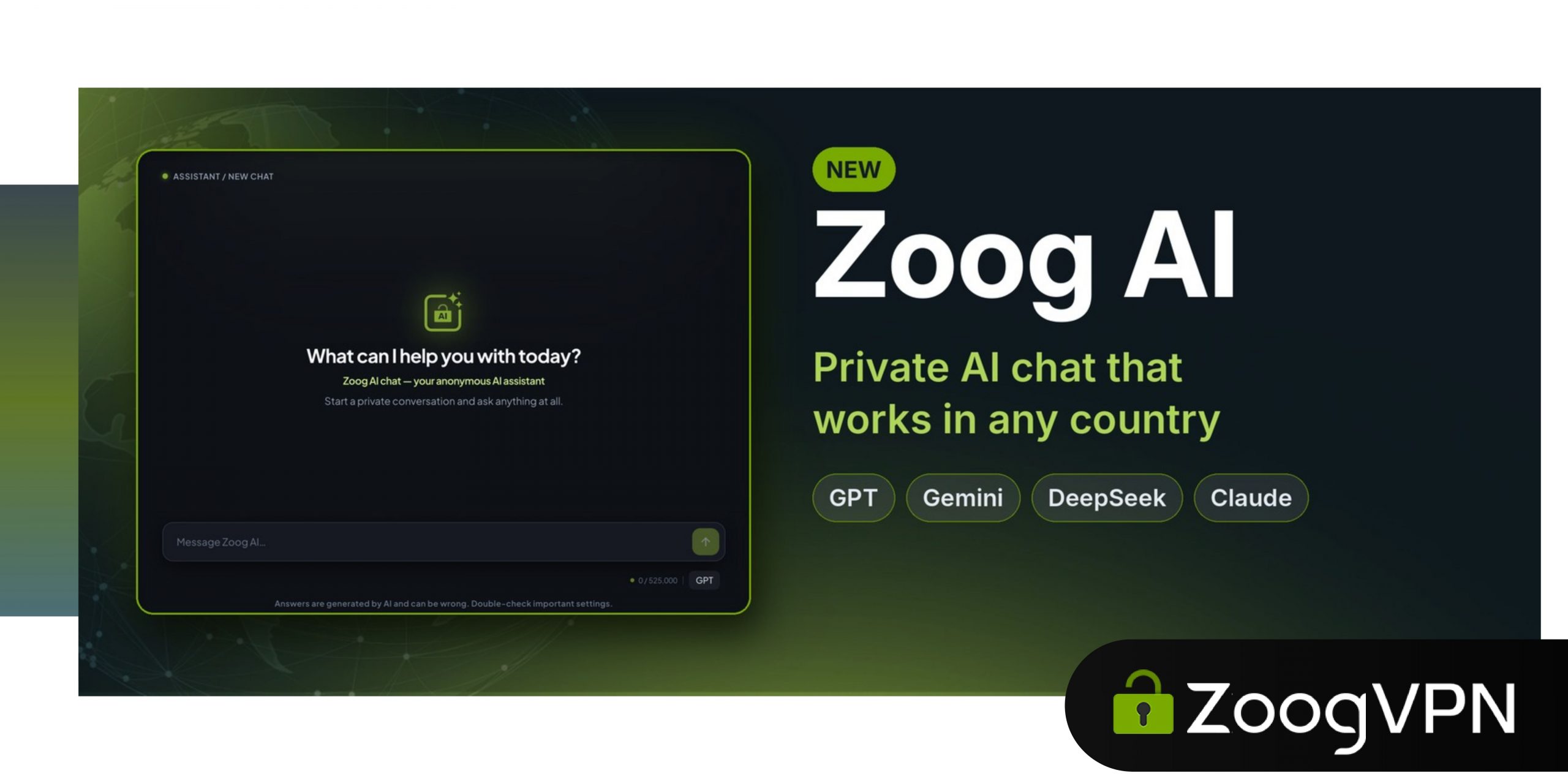
We are excited to introduce Zoog AI, our very own AI chat, and it is ready for you right now. We built it around one simple idea: what you ask an AI should not be tied to who you are. And like ZoogVPN, it works for everyone, wherever they are.
🛡️ Anonymous by design
Your chats go through ZoogVPN, not through your personal AI accounts, so the AI services don’t know who is asking. On our side, we protect your data, ensuring complete anonymity.
Zoog AI brings four popular AI models together in one chat: GPT, Gemini, DeepSeek and Claude. You can pick the one you like from the menu next to the message box and switch between them whenever you want. There is nothing extra to download and no new account to create. Just log in with your ZoogVPN account, and you are ready to go.
Zoog AI works in every country. Whether you are at home, travelling, or living somewhere popular AI services are not available, you get the same models and the same features.
Both modes are equally anonymous, and we have no access to your chats. In both, the assistant remembers the context of your conversation. Just pick the way you prefer to work.
🔒 Secure mode
Like an incognito tab. Your chat lives only in your browser and is never stored on our servers. Ideal for personal and anonymous questions.
💬 Regular mode
Like a synced browser. Your chats are available on all your devices, and you can search or delete them at any time. Ideal for tasks you’ll come back to.
Zoog AI is available to all ZoogVPN Premium users, at no extra cost.
If you already have an active subscription, just visit the link and use it right away.
How to Start Using Zoog AI
Open app.zoogvpn.com/ai in any browser, on your phone or computer.
Log into your ZoogVPN account.
Choose a model and a mode, then type your first question.
How to Add Zoog AI to Your Home Screen or Desktop
Add Zoog AI to your phone or computer once, and open it with one tap, just like a regular app. Watch the short video for your device or follow the steps below it.
iPhone + Safari
- Open app.zoogvpn.com/ai in Safari
- Tap ••• in the lower-right corner
- Tap Share, then “View More”
- Tap “Add to Home Screen”
Android + Chrome
- Open app.zoogvpn.com/ai in Chrome
- Tap the ⋮ menu in the top right corner
- Tap “Add to Home screen”, then “Install”
Windows + Chrome
- Open app.zoogvpn.com/ai in Chrome
- Click the install icon in the address bar, or open the ⋮ menu and choose “Cast, save, and share” > “Install page as app”
- Click “Install”. Zoog AI opens in its own window and appears in your Start menu
Thank you for being with ZoogVPN. We hope you enjoy Zoog AI, and we would love to hear what you think!
- Roksolana KogutRoksolana dives deep into online privacy, security, and the tools that make the internet work better for everyone. She has a natural taste for taking technical subjects and making them feel approachable, useful, and worth reading.


