

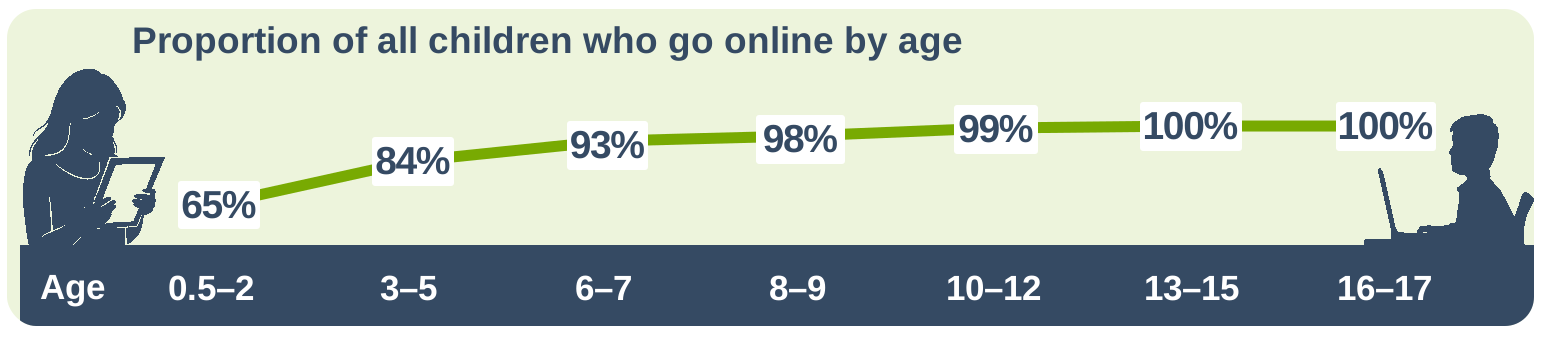
The question of how to protect kids online usually arrives the same week the phone does, and that week is easy to predict. Ofcom’s 2026 research found smartphone ownership jumps from 56% of 10-year-olds to 83% of 11-year-olds. One birthday, and the arrangement you were quietly relying on stops applying.
Most advice at that moment is a list of frightening things or a list of apps to buy. This guide ranks the risks by how often they actually happen, then walks you through a setup you can finish in an afternoon. It is also honest about what none of it fixes.
What internet safety for kids actually means today
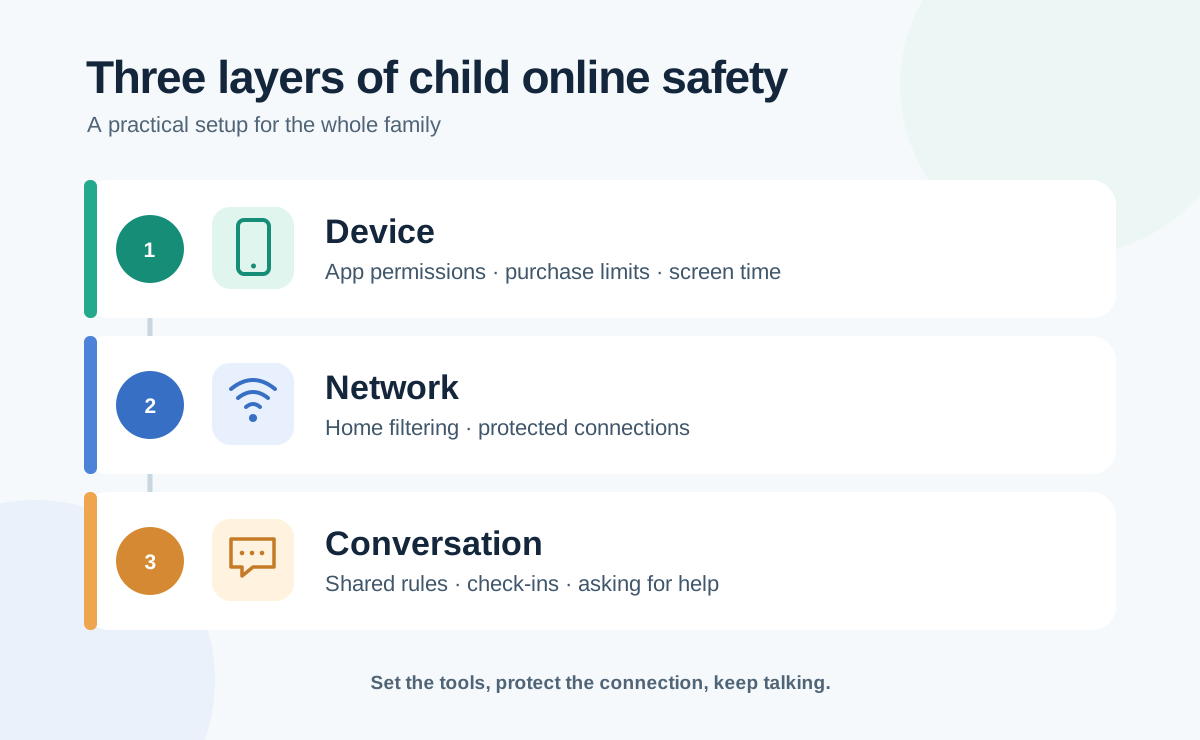
Internet safety for kids comes down to three layers: the device your child holds, the network it connects through, and the conversation at home. Which layer does the heavy lifting changes as they get older, and getting that order wrong is why so many setups feel pointless within a year.
Ages 5-9
Devices are shared and nearly everything that goes wrong is accidental: an autoplay rabbit hole, an ad that leads somewhere strange, a game demanding a name and a photo before it will let anyone play. No independent accounts yet, so device settings and a filtered home network do the work.
Ages 10-13
The phone arrives, and with it the first real accounts. Contact risk begins here, because your child now has inboxes you cannot see over their shoulder. Ofcom found 83% of parents know social platforms have a minimum age, but only 32% can name 13 correctly.
Ages 14+
Controls stop being the main tool and turn into something you negotiate. A teenager with a friend’s spare handset and a school laptop has more ways around a filter than you have evenings to close them. What holds here is an agreement with a few controls behind it, not the reverse.
The real risks for kids online, ranked by how often they happen
In rough order of frequency: unwanted contact through game chat and DMs, data collection by the apps themselves, purchase and gift-card scams, location oversharing, cyberbullying from peers your child already knows, and inappropriate content. Look at what is not at the top of that list, then at what most parenting advice spends its time on.
Contact from strangers in games and DMs
This happens in game voice chat and DM requests, not in some shadowy corner of the internet. The pattern is boring and effective: an adult or older teen is friendly across several sessions, becomes a familiar name, then suggests moving the chat somewhere you cannot see.
Data collection by the apps and games themselves
Most free children’s games carry third-party advertising SDKs that quietly collect device identifiers, approximate location and behavioural data. It is legal, routine, and it happens on every install, which makes it the most frequent thing here by an enormous margin.
In-app purchases, gift cards and free-currency scams
“Free V-Bucks” and “free Robux” sites are among the most reliable ways ever invented to get a child to hand over a password or a parent’s card details. The scam does not need to be clever. The audience is ten.
Location oversharing
Live location in messaging apps, “online now” status in games and the metadata attached to photos leak more than most parents expect. Here is how apps track your location, and what it gets used for.
Cyberbullying
Overwhelmingly this comes from peers your child already knows: classmates, a group chat, a team. Stranger harassment exists, but the version that ruins a child’s week usually has a name and sits two rows over in maths.
Inappropriate content, including AI-generated
Mostly encountered by accident, through recommendations and ads rather than searches. AI image tools added a category that did not exist three years ago, including fabricated images of real classmates. Filters catch the accidental exposure and little else.
Why children’s data is valuable and who collects it
A child’s ad identifier is worth more than yours, for a reason that is uncomfortable once you see it: it maps a person at the start of several decades of purchasing. And it is assembled by the ad networks inside the games, not by the studio whose logo is on the box.
The amended COPPA Rule (90 FR 16970) reached full compliance on 22 April 2026. It requires separate parental consent before a service shares a child’s data with third parties, a written retention policy, and it treats biometric identifiers as personal information.
The honest gap: COPPA covers under-13s, so a 15-year-old in the US is treated much like an adult. To deal with the profile that already exists, start with how to remove your personal data from the internet.
What parental controls actually cover, and where they stop working
Parental controls are genuinely good at limiting time, blocking app categories and gating purchases. They are weak against anything that leaves the managed device, and none survive a determined teenager with a free afternoon.
| Control type | What it blocks | What it doesn’t | Survives a determined teenager? |
|---|---|---|---|
| Screen Time / Family Link | App installs, time limits, age-rated content, purchases | Contact inside approved apps, borrowed devices | No |
| App store gate (Family Sharing) | Downloads and in-app purchases without consent | Web apps, sideloading, a second account | Partly |
| Router or DNS filtering | Known adult and malware domains, network-wide | Mobile data, VPN apps, encrypted DNS | No |
| In-app privacy settings | DMs from strangers, location sharing, discoverability | Anything the child re-enables | No |
| Monitoring apps | Very little on its own | Trust, once discovered | No |
What device-level controls do well
They set the default. A child who has to ask before installing something asks, most of the time, because the friction is real. That is the value: fewer accidental problems, not a sealed perimeter.
The five common bypasses
An old handset in a drawer, still happily connecting to home Wi-Fi. A friend’s phone at lunch. In-app browsers inside social apps, which often ignore system-level filters. A VPN app, which routes straight around DNS or router filtering. And the factory reset, which clears everything in about four minutes.
The one-afternoon setup checklist
Five steps, in this order, about 90 minutes. The order matters, because everything else attaches to the accounts you create first.
Step 1
Child accounts and Screen Time or Family Link
Create a proper child account tied to yours, rather than handing over an adult account with restrictions bolted on afterwards. On iPhone that is Family Sharing plus Screen Time, on Android it is Family Link. Set content ratings and downtime now, and leave app-by-app limits until you have seen a week of real usage.
Step 2
The app store gate
Turn on “Ask to Buy” so every download and in-app purchase needs your approval. As of September 2026 the Texas App Store Accountability Act makes a version of this mandatory: effective 1 January 2026, enjoined, allowed to operate by the Fifth Circuit in June 2026, and the Supreme Court declined to block it in July 2026. Apple now requires new Texas accounts belonging to under-18s to join a Family Sharing group, with parental consent for downloads and purchases. Utah’s date moved to May 2027, and Louisiana and Alabama are pending.
Step 3
Protect your home
Everything in your house goes out through one router, which makes it the best ten minutes you will spend today. Two things to do while you are logged in.
Switch the DNS setting to a family-safe option. DNS is the setting that turns website names into addresses, it usually sits under Network or Internet, and changing it blocks known adult and scam sites on every device at once: the tablet, the console, the laptop you forgot you owned.
Set up a VPN on your router. It does a different job from the filter. It scrambles everything leaving your house so nobody else on the network can read it, and it blocks ads and trackers on every device at the same time, which is the one thing on this list that pushes back on the data collection from earlier. Installed on the router, it covers the whole family without an app on anyone’s phone. More on what a VPN can and cannot do below.
Step 4
The four app settings worth changing
In every app your child uses: turn off precise location, restrict DMs to existing contacts, turn off discoverability by phone number and email, and turn off ad personalisation. Five minutes per app, and it removes more real risk than any filter here.
Step 5
Payment and purchase locks
Remove saved cards from the child’s account, require a password for every purchase, and use a gift-card balance rather than a linked card. This is the step that prevents the expensive version of a bad afternoon.
One install on the router, every device covered
ZoogVPN encrypts your household’s traffic and blocks ads and trackers on all of it, with no app in anyone’s hands.
Where a VPN fits
What it does is encrypt the connection between your household and the internet, so nobody else on the network can read the traffic going past. That matters on hotel, airport and cafe Wi-Fi, and anywhere you have no idea who else is connected.
The version that fits here is the router install. Running ZoogVPN on the router covers every device in the house without putting a VPN app in a child’s hands, and its ad and tracker blocking cuts into the data collection described above. Here is how to set up a VPN on your router. ZoogVPN has no parental control feature and is not a child-safety product.
Worth knowing before you install
Do not install a VPN app on your child’s phone if you are relying on DNS or router-level filtering. A VPN on the device routes traffic around that filtering entirely, and it hides that traffic from any monitoring you set up. Install it on the router instead, where it protects the whole household without handing anyone a bypass tool.
The conversation part: how to keep kids safe online without surveillance
Three agreements do more work than the entire checklist above.
“You will never be in trouble for telling me.” The most useful sentence a parent can say, because children hide problems online out of fear of losing the device. Say it before anything happens, and mean it the first time it is tested, which is the only time it counts.
The shared-device rule. Phones charge outside the bedroom overnight, adults included. Not a punishment, and it quietly removes the hours when most of the bad conversations happen.
Scheduled loosening. Agree in advance which controls come off at which age. A control with an end date is a rule. A control with no end date is a challenge.
On monitoring an older teenager’s messages: it is generally legal for a parent of a minor in the US, so it is a trust decision rather than a legal one.
None of this is a finished job. It is a setup that buys you a calmer year and a child who tells you things. Next, read what school Wi-Fi actually logs.
Cover the whole house from one place
ZoogVPN on your router encrypts every device in the household and blocks ads and trackers across all of them. AES-256 encryption, a kill switch and a strict no-logs policy, on up to 10 devices.
- Roksolana KogutRoksolana dives deep into online privacy, security, and the tools that make the internet work better for everyone. She has a natural taste for taking technical subjects and making them feel approachable, useful, and worth reading.


