

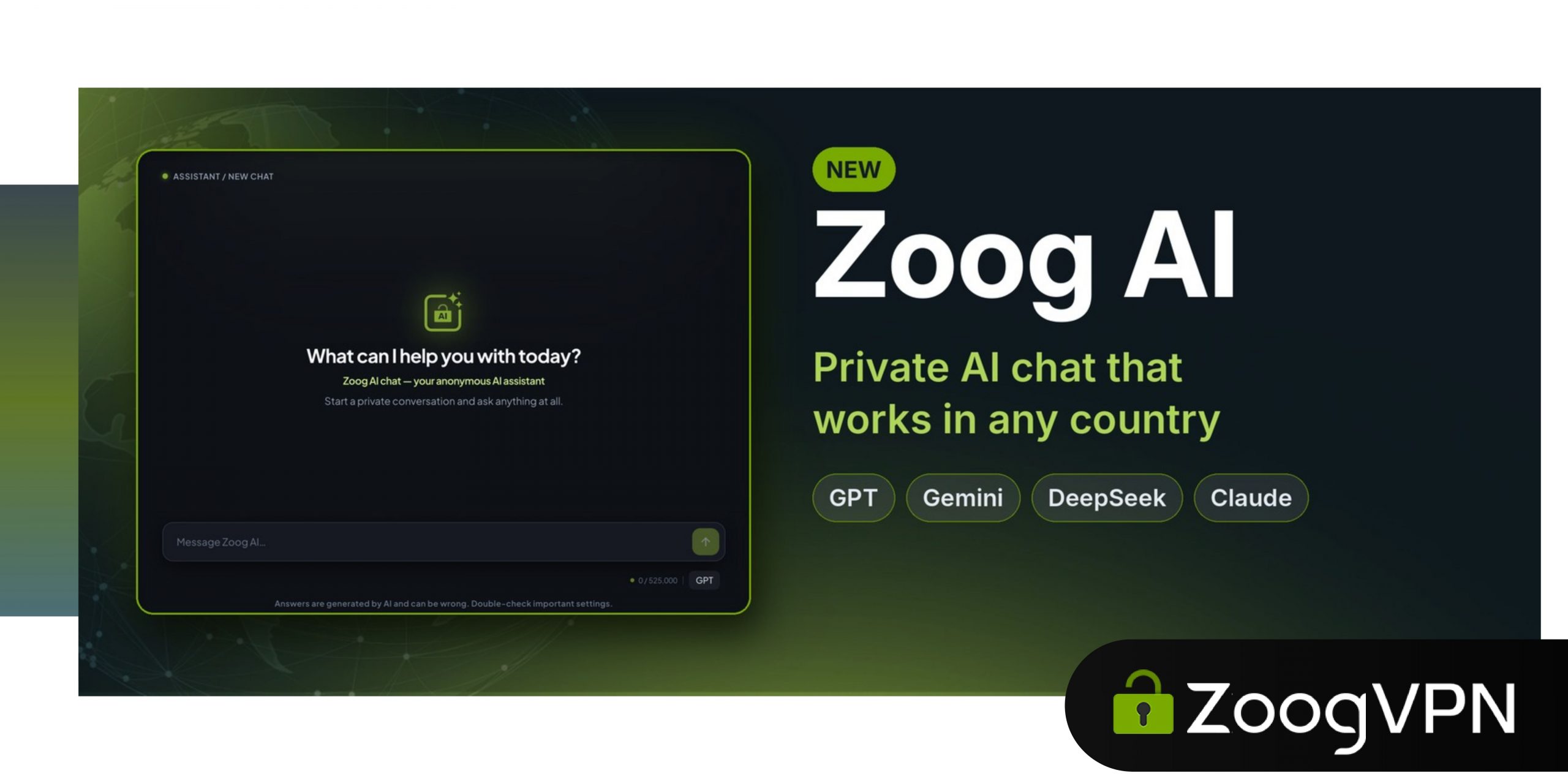
We are excited to introduce Zoog AI, our very own AI chat, and it is ready for you right now. We built it around one simple idea: what you ask an AI should not be tied to who you are. And like ZoogVPN, it works for everyone, wherever they are.
🛡️ Anonymous by design
Your chats go through ZoogVPN, not through your personal AI accounts, so the AI services don’t know who is asking. On our side, we don’t log or record your data, ensuring complete anonymity.
Zoog AI brings four popular AI models together in one chat: GPT, Gemini, DeepSeek and Claude. You can pick the one you like from the menu next to the message box and switch between them whenever you want. There is nothing extra to download and no new account to create. Just log in with your ZoogVPN account, and you are ready to go.
Zoog AI works in every country. Whether you are at home, travelling, or living somewhere popular AI services are not available, you get the same models and the same features.
Here is what you get with Zoog AI:
- Anonymous by design. Requests go through ZoogVPN, so AI services never see who is asking.
- 4 AI models, one chat. Switch between GPT, Gemini, DeepSeek and Claude in one tap.
- Works in any country. Same models and features wherever you are, with no regional blocks.
- Web View. Paste a link, and Zoog AI reads the page behind the scenes and uses its content in the answer.
- Two privacy modes. Choose maximum privacy or full chat history, chat by chat.
Zoog AI works in two modes that offer different levels of anonymity. In both, the assistant remembers the context of your conversation. The difference comes down to what matters more to you: maximum privacy or access to your full chat history.
🔒 Secure mode
Like an incognito tab. The full chat context is kept only on your device, and our servers have no access to what these chats contain. Ideal for personal and anonymous questions.
💬 Regular mode
Like a synced browser. Built for convenient everyday use: your chats sync across your devices, and you can search or delete them at any time. Ideal for tasks you’ll come back to.
Zoog AI is available to all ZoogVPN Premium users, at no extra cost.
If you already have an active subscription, just visit the link and use it right away.
How to Start Using Zoog AI
Open app.zoogvpn.com/ai in any browser, on your phone or computer.
Log into your ZoogVPN account.
Choose a model and a mode, then type your first question.
How to Add Zoog AI to Your Home Screen or Desktop
Add Zoog AI to your phone or computer once, and open it with one tap, just like a regular app. Watch the short video for your device or follow the steps below it.
iPhone + Safari
- Open app.zoogvpn.com/ai in Safari
- Tap ••• in the lower-right corner
- Tap Share, then “View More”
- Tap “Add to Home Screen”
Android + Chrome
- Open app.zoogvpn.com/ai in Chrome
- Tap the ⋮ menu in the top right corner
- Tap “Add to Home screen”, then “Install”
Windows + Chrome
- Open app.zoogvpn.com/ai in Chrome
- Click the install icon in the address bar, or open the ⋮ menu and choose “Cast, save, and share” > “Install page as app”
- Click “Install”. Zoog AI opens in its own window and appears in your Start menu
⏳ Coming soon
Files and images are coming to Zoog AI
Soon you will be able to attach documents and images to your chat and ask Zoog AI about them directly. It will read your files and use them as context for its answers, and you will also be able to download files from the chat.
PDFDOCXCSVXLSImages
Thank you for being with ZoogVPN. We hope you enjoy Zoog AI, and we would love to hear what you think!
Frequently Asked Questions
Is Zoog AI free?
Zoog AI is included with every ZoogVPN Premium plan at no extra cost. If you already have Premium, just sign in with your ZoogVPN account. If not, you can upgrade anytime and get the VPN and the AI chat in one subscription.
Can I upload documents or images to Zoog AI?
Not yet. File and image uploads are in development and coming soon. You will be able to add PDF, DOCX, CSV and XLS files and images to your chat, and Zoog AI will use them as context for its answers. You will also be able to download files from the chat. For now, you can paste text or share links to web pages.
What is the difference between Secure and Regular mode?
In both modes, the assistant remembers the context of your conversation. In Secure mode, the chat stays only on your device and our servers have no access to it. In Regular mode, your chats sync across your devices so you can return to any of them.
How does Zoog AI keep my chats private?
Zoog AI connects to the AI models through our servers using our own accounts, so AI services never see who is asking. In Secure mode, we don’t store or log anything: chats are processed in real time and kept only on your device, so we have no access to them. In Regular mode, your chats are stored encrypted and linked to your account so they can sync across your devices.
Which AI models can I use in Zoog AI?
Zoog AI gives you GPT, Gemini, DeepSeek and Claude in one chat. Pick a model from the menu next to the message box and switch between them whenever you want. The exact version of each model depends on the current limits in our system, and we always aim to give you the smartest ones available. We also plan to add more AI models over time.
Are there any usage limits in Zoog AI?
Yes. Zoog AI currently uses daily limits. Our team adjusts them based on how the service is used, so every user gets as much access as possible and the system stays fast and stable.
Does Zoog AI remember what I said earlier in the chat?
Yes. Zoog AI keeps the context of each chat, so you can ask follow-up questions and build on earlier answers. Each AI model can hold a limited amount of conversation at once. In very long chats, the earliest messages may drop out of context, so for best results, start a new chat for a new topic.
Can I use Zoog AI on Android and on my computer?
Yes. Zoog AI runs in any modern browser on iPhone, Android, Windows and macOS. It also works as a PWA (progressive web app), so you can add it to your Home Screen or desktop and use it like a regular app. See how to install Zoog AI.
- Roksolana KogutRoksolana dives deep into online privacy, security, and the tools that make the internet work better for everyone. She has a natural taste for taking technical subjects and making them feel approachable, useful, and worth reading.


