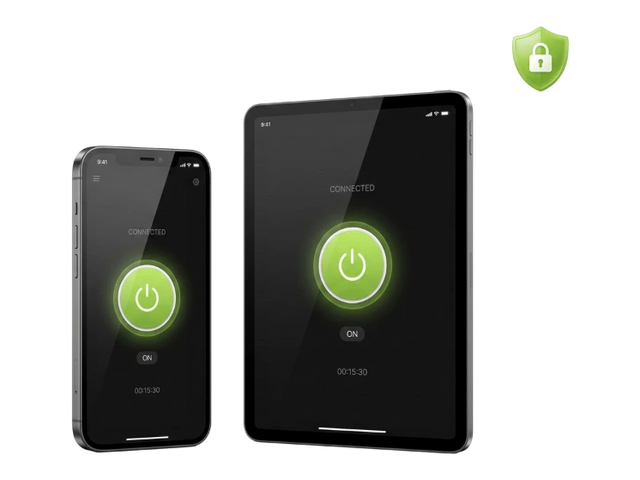
Close Every Leak With ZoogVPN
WebRTC, DNS and IP leak protection, an anonymous IP and a built-in Kill Switch, in every ZoogVPN app.
Get started today. No credit card required.

Check your device for WebRTC leaks and make sure your browser doesn’t give away your real IP address, even when your VPN is on.
Get started →
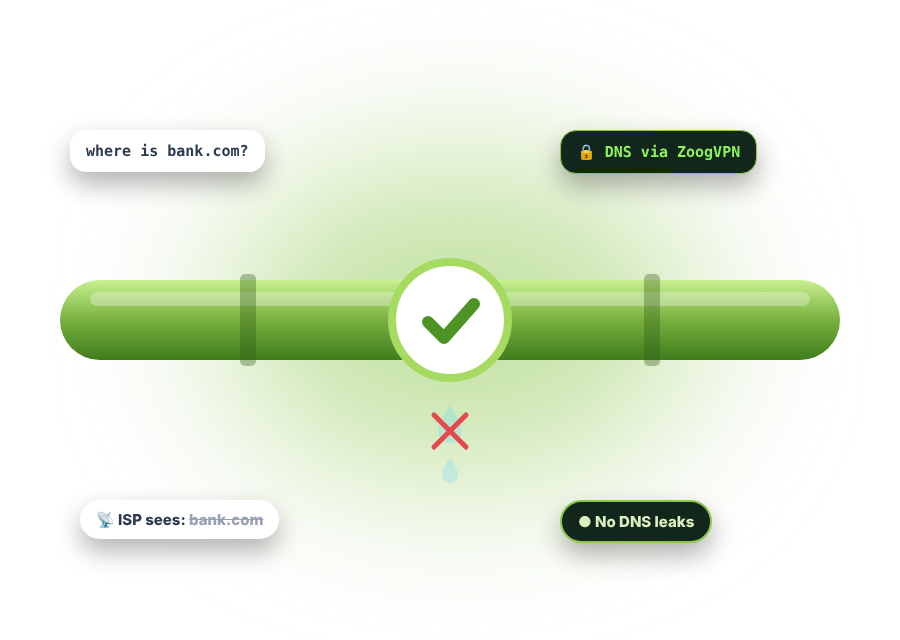
Press the button to see which IP addresses your browser shares through WebRTC. If your VPN is on, none of them should be your real IP.
The test runs in your browser. We don’t store your IP address.
Three quick steps. You only need a couple of minutes.
Turn off your VPN or proxy and open this page. The IP shown is your public IP from your internet provider. Write it down or remember it.
Connect to any VPN server, open this page again and press Start test. Check which IP addresses appear.
If the test shows your real IP from Step 1 while the VPN is on, your browser has a WebRTC leak. A different IP means you’re safe.
WebRTC (Web Real-Time Communication) is a set of technologies that lets browsers and apps connect to each other directly, without a server in the middle. That makes video calls, voice chats, file transfers and live streams faster and smoother.
The catch: to connect directly, both sides need to know each other’s IP address, and that’s where leaks can happen.
WebRTC is open source and built into almost every modern browser.

Browser-based calls and meetings connect people directly for less delay and clearer sound.

Peer-to-peer connections send video faster than server-based methods like HLS.

Text messages and files go straight between devices, with no compatibility worries.
WebRTC makes your browser faster, but many people overlook what it means for their privacy.
When two devices talk through WebRTC, they learn each other’s IP addresses. Any website can ask your browser for this information, so your real IP can show up even when your VPN is on.
A good VPN routes all your traffic through an encrypted server, so the only IP websites can find is the VPN’s. That works as a real WebRTC leak shield, together with protection from DNS and other IP leaks.
There are a few ways to stop your browser from leaking your IP. Here's how they compare.
🛡️ 3 ways
The best and easiest option. A VPN masks your IP, hides your identity and stops WebRTC, DNS and other IP leaks, without breaking any features.
Get ZoogVPN
Extensions like WebRTC Leak Prevent or WebRTC Control block WebRTC requests. They act as a leak shield, but other leaks are still possible.
Secure your browser
Some browsers let you disable WebRTC completely. Be careful: video calls, streaming and other features may stop working.
Get ZoogVPNEvery browser handles WebRTC differently. Pick yours below. Keep in mind that turning WebRTC off can break video calls and some streaming sites.
Chrome has no setting to turn WebRTC off, so the easiest way is an extension.
Firefox lets you switch WebRTC off in its advanced settings.
about:config in the address bar and press Enter.media.peerconnection.enabled.Safari limits what WebRTC can share by default. You can check this setting is still on.
Edge is built on the same engine as Chrome, so an extension is the simplest option.
Opera has a WebRTC setting built in.
Chrome for Android no longer has a setting to switch WebRTC off. The simplest way to stay protected on your phone is a VPN app.
Plain answers about WebRTC, leaks and VPNs.
Chrome has no built-in setting for this. Install an extension from the Chrome Web Store, such as WebRTC Leak Prevent, WebRTC Control or Easy WebRTC Block: click Add to Chrome, confirm with Add extension, then turn it on. A VPN that prevents WebRTC leaks is the easier option.
Type about:config in the address bar, accept the warning, search for media.peerconnection.enabled and double-click it so it changes to false.
Safari already limits what WebRTC shares. In Settings → Advanced, tick Show features for web developers, then in the Develop → WebRTC menu make sure Disable ICE Candidate Restrictions is not ticked.
Note your IP with your VPN off, then connect to the VPN and press Start test at the top of this page. If your real IP appears, your browser is leaking it.
Yes. A leak shield stops WebRTC from exposing your real IP. A browser extension protects only that browser and only from WebRTC leaks, while a VPN protects all your traffic from WebRTC, DNS and other IP leaks.
Usually you don’t need to. Blocking WebRTC can break video calls, voice chats and some streaming. A VPN that prevents leaks keeps your IP hidden while everything keeps working.
WebRTC connections are encrypted, so the content of your calls and chats is protected. The privacy risk is that WebRTC can reveal your IP address to websites.
Yes. Video calls and other WebRTC features work normally with ZoogVPN, and your real IP stays hidden behind the VPN.
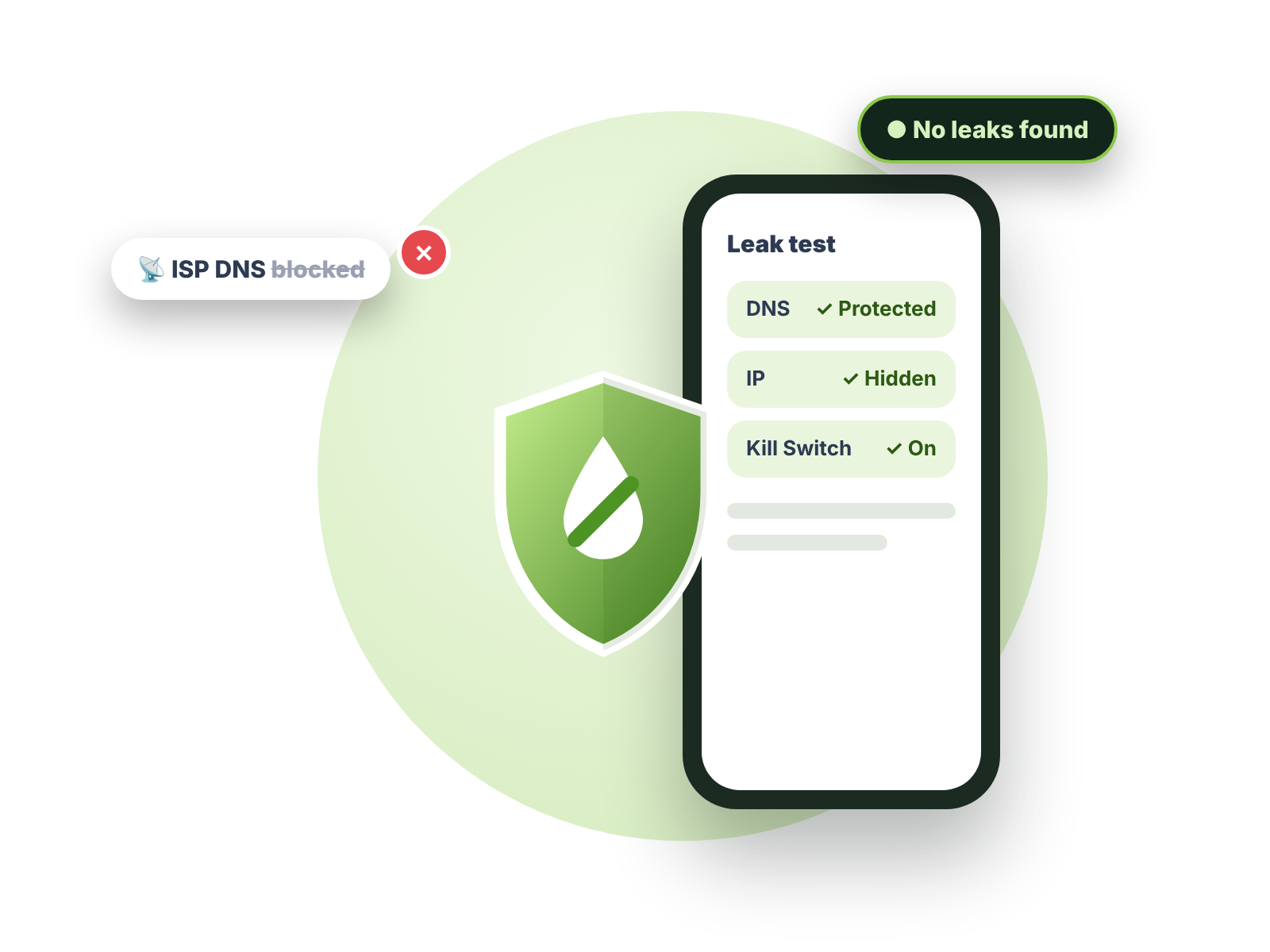
WebRTC, DNS and IP leak protection, an anonymous IP and a built-in Kill Switch, in every ZoogVPN app.
Get started today. No credit card required.
WebRTC, DNS and IP leak protection, a built-in Kill Switch and zero logs, on up to 10 devices.